
Document Management taken to the Nekst Level

Transaction Coordinator Software should tell you what's signed, not just what's uploaded. Documents 2.0 adds folders by deal phase, signature tracking for every party and notes right for each document.
Every TC has some version of the same sticky note. "Seller still hasn't signed the addendum." "Buyer agent said she'd send the HOA docs Tuesday." The documents are in your system, but the status of those documents lives in your head, your inbox or on the edge of your monitor.
Documents 2.0 is now live for every Nekst account, and it turns the Documents page from a file cabinet into a checklist that tells you what's actually done.
"Uploaded" was never the same as "signed"
The old Documents page did one job well. It showed you that a file was there. It couldn't tell you whether the seller had signed, whether the broker still needed to, or whether you'd already sent it out and were waiting on it to come back.
That gap is where deals slip. A missing initial on page six doesn't show up until the lender or title catches it, usually a few days before closing. Good real estate transaction management software should surface it on day one.
Folders that follow the deal
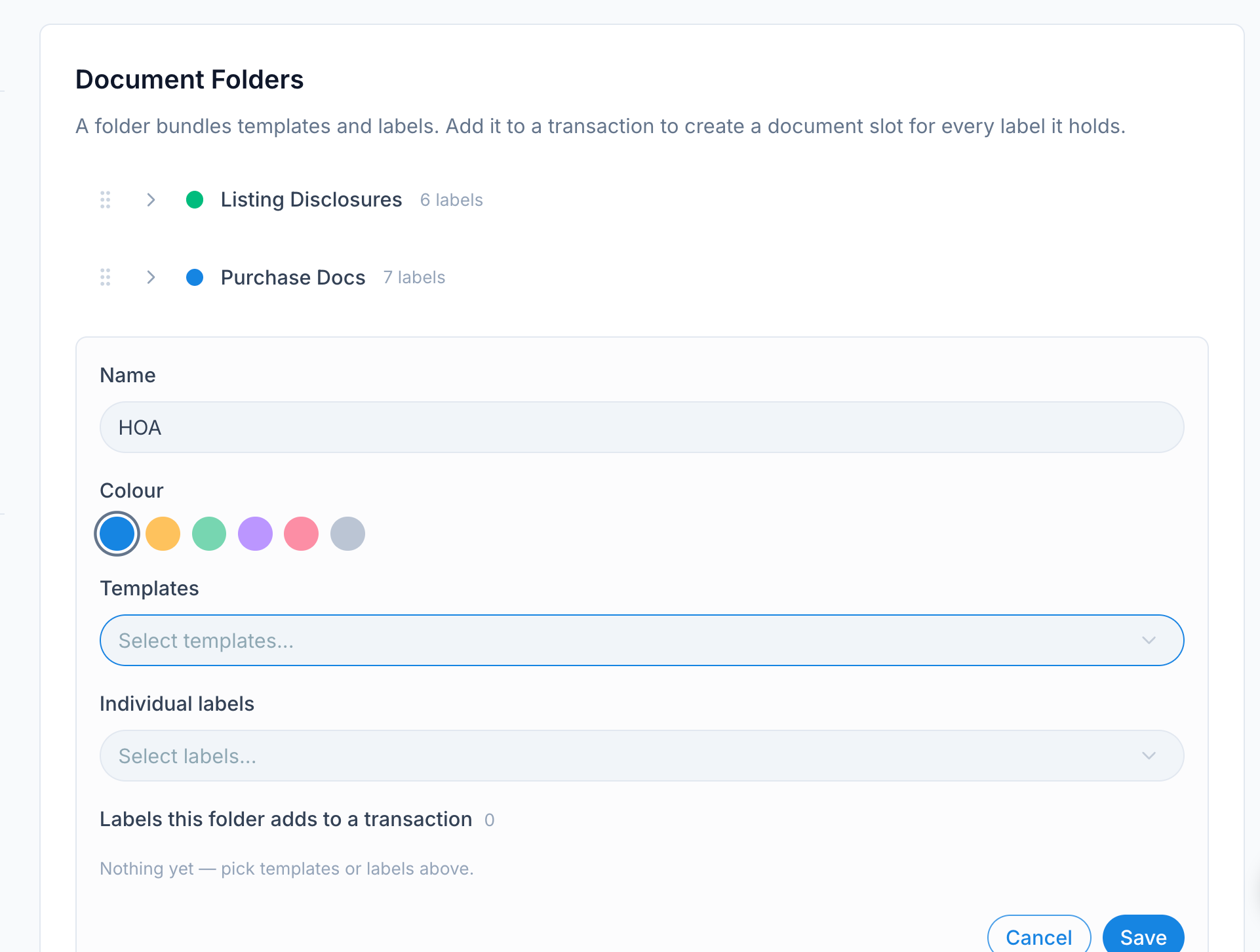
Deals happen in phases. There's the listing paperwork, then the pending paperwork once you're under contract, and sometimes a second round when the first buyer walks. Document Folders let you group a transaction's documents the same way.
You set up your folders once under Settings → Document Folders, using the templates and labels you already have. New accounts start with four: Pending Buyer, Pending Seller, Listing and Active Buyer. On a transaction, click Add Folder and every label in that folder drops in as an empty slot, ready for uploads. If a label is already on the deal, Nekst skips it, so you never end up with two Purchase Contracts fighting for the same spot.
See every signature at a glance
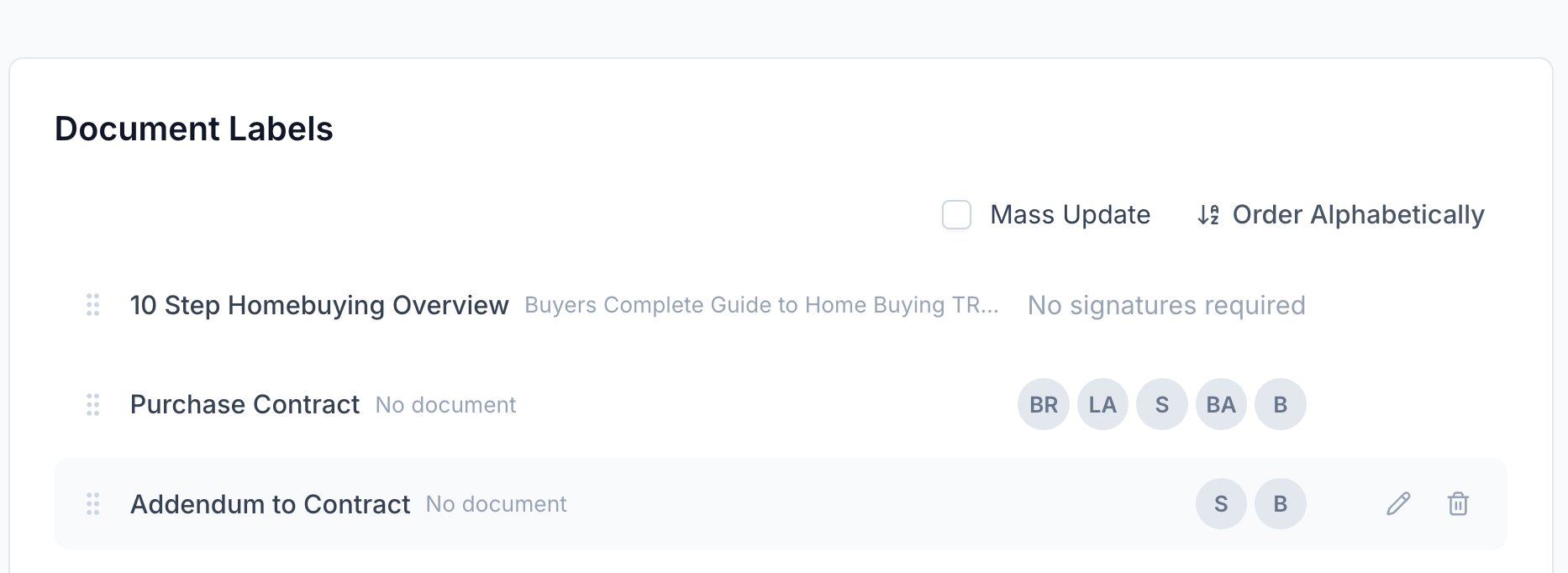
Each label can now say who has to sign it: Broker, Listing Agent, Seller, Buyer Agent or Buyer. Set the usual signers once on the label, then adjust them on any deal that's different, like a seller who signs through an attorney.
On the transaction, each party gets a small badge in the Signatures column. Red means not signed, amber means sent and waiting, green means done and grey means not needed on this deal. Click a badge to update it, or use Mark Fully Executed to set every party to complete in one step. When every badge is green or grey, the document gets a green check.
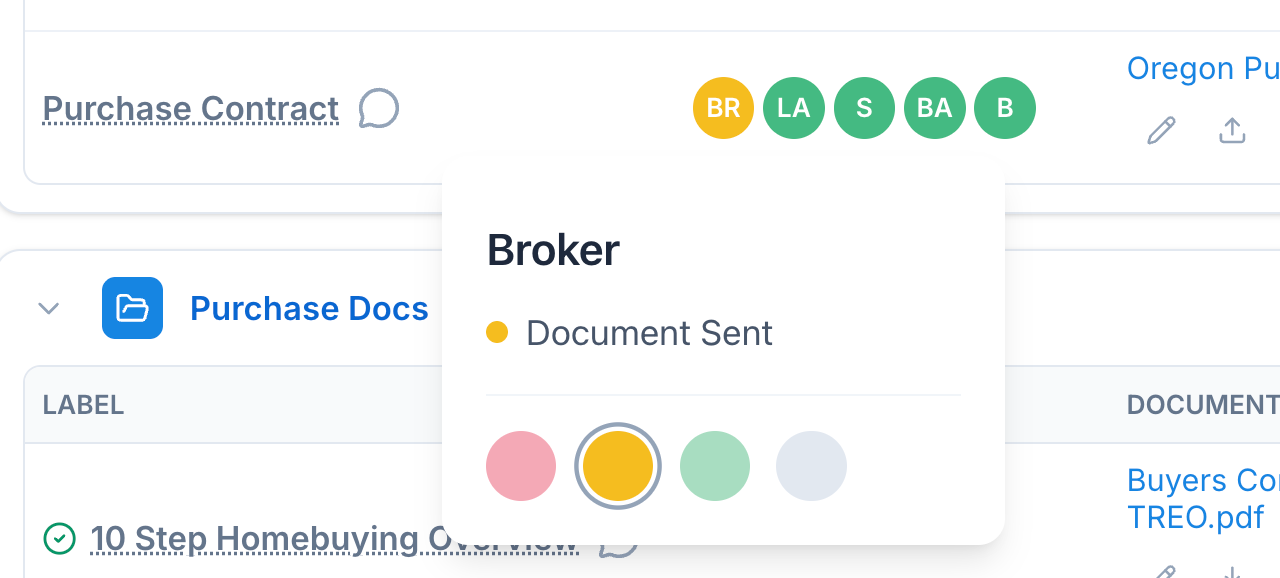
This is the view TCs have wanted for years. You open a transaction and see exactly what's outstanding without opening a single PDF.
Notes that live on the document
"Called the buyer, signing tomorrow" is useful information. It just isn't useful sitting in your head or buried in a note about the whole transaction.
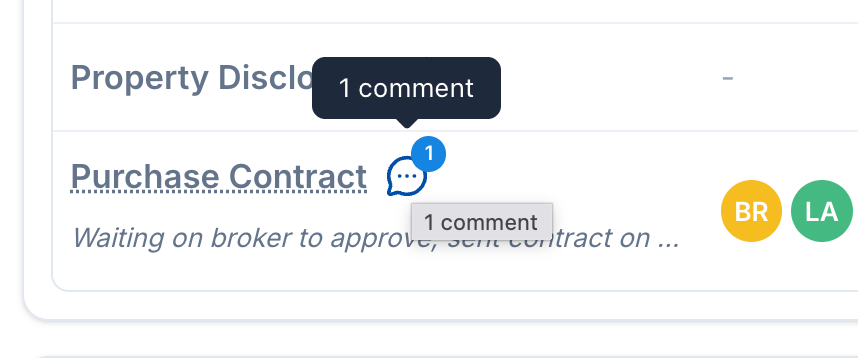
Now every document has its own comment thread. Click the speech bubble next to the label, add a note, and the latest one shows right under the label name. The next person on your team who opens the deal sees it without having to ask. Comments stay internal, so they never show up in the Client Portal or in anything you send.
When the deal falls apart
Every agent has had the deal that dies at inspection and comes back a week later with a new buyer. Before, the old contract sat under the Purchase Contract label and the new one had nowhere clean to go.
Now you archive the old folder and the label frees up right away. Add the new contract, and every email SmartTag, attachment and Client Portal link points only to the active document, so nobody gets the dead contract by mistake. If you need the old one back, restore it and use Make active to swap the two. Nothing gets replaced unless you choose it.
The everyday fixes you'll notice right away
A few smaller changes make the Documents page faster to work in:
- Upload several files at once. Each one gets its own label and its own Client Portal switch.
- Split a big PDF. Pick the pages you want and turn one scanned package into separate, labeled documents.
- Fix a wrong label. Use Change Label instead of deleting and uploading again.
Sharing works the same as before. Your #documents. SmartTags in workflows keep doing their job, and now they always send the right file.
The bottom line
Documents 2.0 is the kind of upgrade that saves you five minutes a dozen times a day. For a transaction coordinator juggling 30 files, that adds up to real hours back and fewer surprises at the closing table. That's what Transaction Coordinator Software is supposed to do.
To get set up, start with Storing & Sharing Documents for labels, templates and folders, then Working with Documents on a Transaction for signatures, comments and archiving.